ExplorerPatcher for Windows 10 & 11 – Download, Install
Software Name
ExplorerPatcher
Size
2 MB
Version
22621.4317.68.1
System Required
Windows 10 (1809+) & Windows 11
Explorerpatcher is a lightweight, customizable, and fully reversible tool that gives users complete control over their desktop experience while improving productivity, multitasking, and overall usability on modern Windows systems.
The Goal: Close the Gap
It is a free, open-source utility for Windows that restores proven, ergonomic shell behavior—a classic taskbar with labels, full context menus, and File Explorer refinements—so you work faster without risky registry hacks. It reintroduces proven interface elements—like the Windows 10 taskbar, full right-click context menus, and File Explorer refinements— without requiring unsafe registry edits or complicated hacks.
Why ExplorerPatcher Exists
It was created to restore the familiar Windows experience that many users missed after upgrading to Windows 11.
Problems with Windows 11 UI
Many users found the default Windows 11 interface less efficient due to simplified taskbar controls, hidden context menus, limited customization, and extra clicks for common actions.
Open-source trust
As a free and open-source project, it is transparent, community-driven, and regularly updated by developers and contributors worldwide.
What Does ExplorerPatcher Do?
Explorerpatcher restores the classic Windows experience on Windows 11 by bringing back familiar taskbar controls, full right-click context menus, classic File Explorer functionality, and advanced desktop customization options.
Designed for users who prefer the productivity and simplicity of older Windows versions, it improves multitasking, reduces unnecessary clicks, and makes the Windows interface feel faster, cleaner, and more efficient.
Improved Productivity
It helps users work more efficiently by restoring features removed or simplified in Windows 11. From classic taskbar labels to full context menus, everyday actions become quicker and more intuitive, reducing distractions and improving workflow.
Familiar Windows Experience
Many long-time Windows users prefer the layout and behavior of Windows 10. It recreates that familiar environment by restoring the traditional Start menu behavior, taskbar customization, and File Explorer design users already know and trust.
Advanced Customization & Control
Unlike the default Windows interface, this gives users greater control over desktop behavior and appearance. Customize taskbar alignment, tray icons, Start menu positioning, flyouts, window switching, and many other shell elements without complicated registry edits or unsafe modifications.
Lightweight & Performance-Friendly
It is designed to run smoothly with minimal system impact. The software is lightweight, responsive, and optimized for stability, making it ideal for productivity users, gamers, developers, and multitaskers who want customization without sacrificing performance.
Safe, Reversible & Open Source
As a free and open-source project, it is transparent, community-audited, and easy to uninstall at any time. All changes are reversible, allowing users to safely customize Windows 11 while maintaining full control over their system experience.
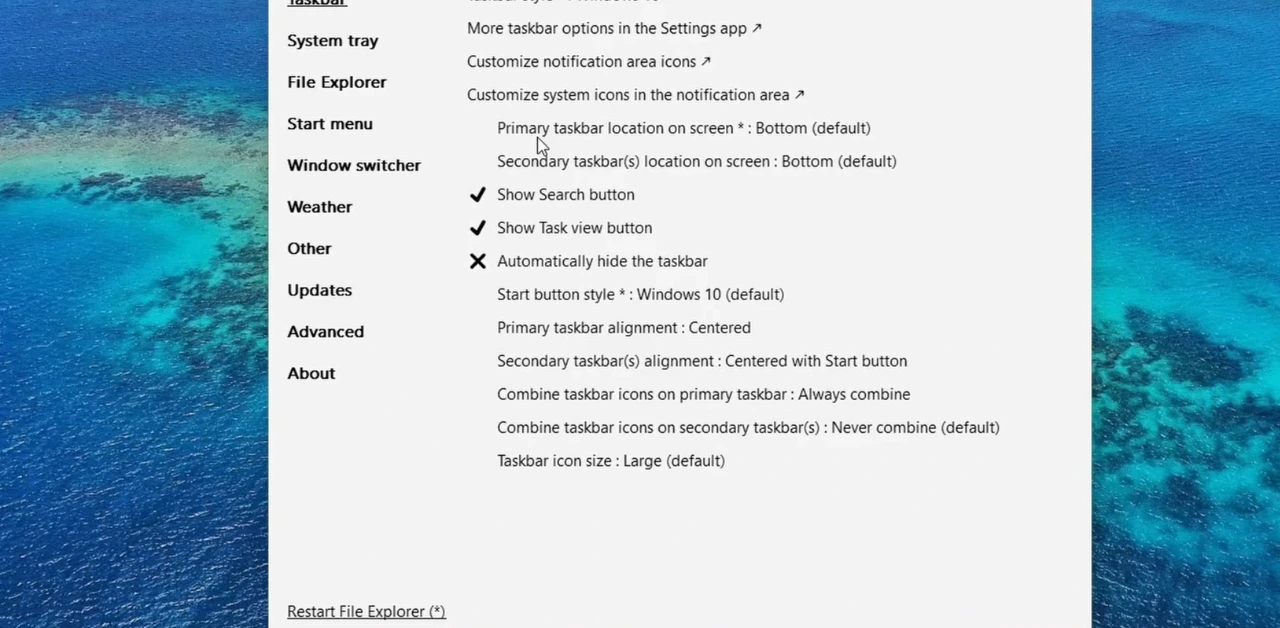
Here are the Highlights:
These are the highlights of ExplorerPatcher.
Start Menu Freedom
Customize the Windows 11 Start menu layout, alignment, and behavior to match the classic Windows experience users already know and prefer.
Taskbar Tweaks
Explorerpatcher Restore the classic Windows 10 taskbar with labels, never combine options, better multitasking controls, and improved desktop productivity.
System Tray Revival
Bring back cleaner system tray behavior with customizable flyouts, clock controls, tray icons, and classic notification management.
File Explorer Upgrades
Restore full right-click context menus, classic ribbon controls, and smoother File Explorer navigation for faster file management.
Window Switcher
Improve Alt + Tab multitasking with a cleaner, more organized window-switching experience designed for productivity and easier navigation.
Weather Widget
Customize taskbar weather integration with better layout control, cleaner flyouts, and a more consistent Windows desktop experience.
Advanced Tweaks
Unlock advanced Windows customization options, including taskbar positioning, shell behavior changes, shortcuts, flyout controls, and performance-focused tweaks.
Start Menu Freedom
Love the tiled layout of Windows 10? Prefer something compact? You can switch between Windows 10 and 11 styles, disable “Recommended” clutter, and even make the Start menu open directly to the full apps list. It’s your start menu, your rules.
Taskbar Tweaks Galore:
Right-click the taskbar to access useful options immediately—no extra “more” clicks and no stripped-down menus. Core tools like Task Manager and window actions live exactly where experienced users expect them to.
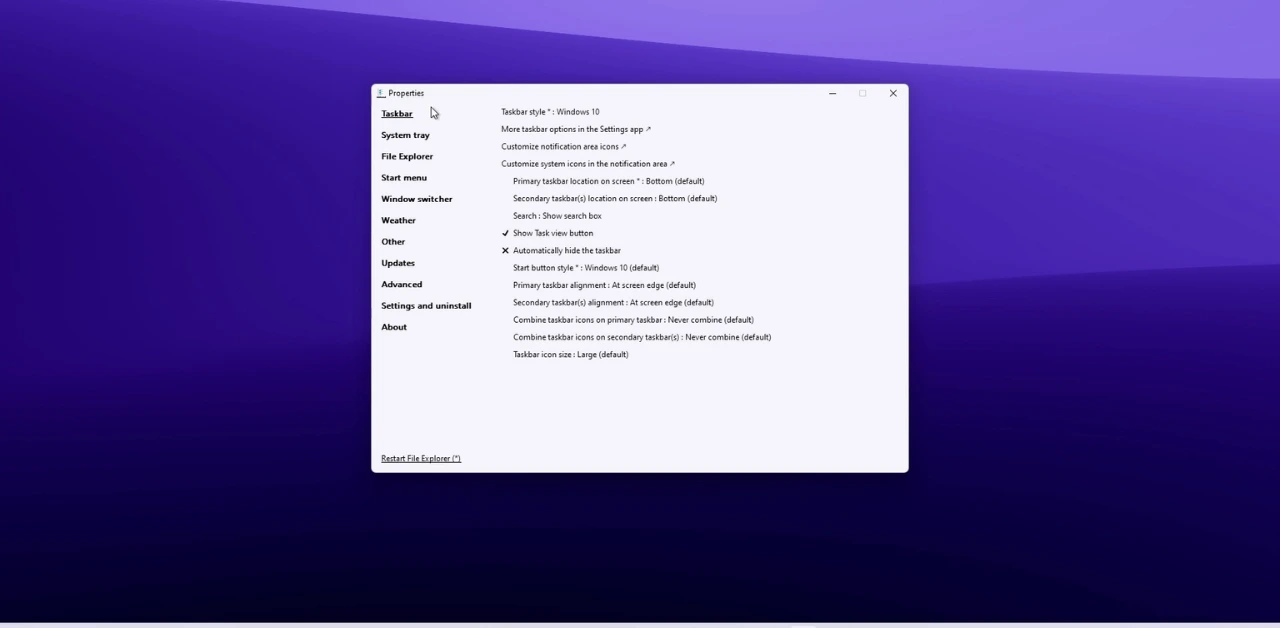
System Tray Revival
- It restores the classic Windows system tray experience with cleaner flyouts, improved icon alignment, and better desktop control.
- Customize tray menus, choose how flyouts open, show clock seconds for precise timing, and manage taskbar corner icons more efficiently.
- The result is a faster, more organized, and more familiar Windows 11 taskbar experience designed for productivity and everyday usability.
File Explorer Upgrades
- This improves the Windows 11 File Explorer experience by restoring classic functionality and reducing the extra steps introduced in newer Windows builds.
- It brings back the traditional ribbon interface, restores full right-click context menus without requiring “Show more options,” and improves navigation pane consistency for faster file management.
- Users can customize folder views, maintain stable Explorer behavior across multiple windows, and enjoy a cleaner, more efficient workflow that feels closer to Windows 10.
Windows Switcher Customization
It improves the Windows 11 task-switching experience with enhanced Alt + Tab functionality, cleaner window previews, and smoother multitasking controls.
It makes switching between apps faster, easier, and more consistent than the default Windows 11 window switcher experience.
Advanced Tweaks:
For the brave (or the especially picky), there’s a robust “Advanced” section teeming with experimental features. A word of caution: read the documentation before you dive in.
ExplorerPatcher Features Guide
Here are some advance features of ExplorerPatcher.
Classic Taskbar & Labels
It restores the classic Windows 10 taskbar with visible labels and never-combined options, making multitasking faster and easier on Windows 11.
Taskbar Context Menu
Bring back the full right-click taskbar menu with quick access to Task Manager, taskbar settings, and essential desktop controls without extra clicks.
System Tray & Flyouts
Customize tray icons, clock behavior, and notification flyouts for a cleaner, more organized, and productivity-focused Windows 11 desktop experience.
Start Position & Most-Used
Move the Start menu to the left or center and control frequently used apps for a more familiar and personalized Windows layout.
File Explorer Tweaks
Improve File Explorer with classic context menus, better navigation behavior, and cleaner folder management for faster everyday productivity.
Classic Ribbon & Legacy Menu
Restore the traditional File Explorer ribbon and full legacy context menus to reduce extra clicks and improve file management efficiency.
Simple Window Switcher
Enhance Alt + Tab multitasking with cleaner previews, smoother navigation, and a more organized window-switching experience.
Multi-Monitor Consistency
Maintain consistent taskbars, tray icons, clocks, and desktop behavior across multiple monitors for a smoother multitasking workflow.
Advanced Start Options
Customize Start menu animations, recent items, recommendations, and layout settings to create a cleaner and more efficient Windows 11 experience.
Taskbar Context Menu, Properly Restored
- It restores the classic taskbar right-click menu that many users relied on in previous Windows versions.
- Instead of the simplified Windows 11 menu with limited options, it brings back direct access to important tools like Task Manager, taskbar settings, toolbar controls, and window management actions without extra clicks.
- This makes everyday multitasking faster, improves productivity, and preserves the familiar workflow that long-time Windows users expect from the desktop environment.
Start Menu Position & Most-Used Apps Customization
- It gives users advanced control over the Windows 11 Start menu layout, alignment, and app visibility for a faster and more personalized desktop experience.
- Easily move the Start menu to the left or center, customize the “Most Used” apps section, and reduce unnecessary clutter for cleaner navigation and improved productivity.
- Designed to restore the familiarity of the classic Windows interface, these Start menu customization features help users access important applications more efficiently while maintaining a smoother and more organized workflow on Windows 11.
Full Context Menus, Stable Navigation & Classic File Explorer Views
- It restores the full Windows 10-style right-click context menu on Windows 11, eliminating the extra “Show more options” step for faster file management and improved productivity.
- It also enhances File Explorer navigation with more stable panes, cleaner layouts, and classic folder views that make browsing files smoother and easier.
- Designed for users who want a faster and more familiar Windows 11 File Explorer experience, it improves desktop usability while keeping the interface lightweight, organized, and efficient.
Restore Classic File Explorer Ribbon
Bring back the traditional Windows 10 File Explorer ribbon for faster access to commonly used tools, commands, and file management options on Windows 11.
Enable Full Legacy Context Menus
Restore the complete right-click context menu and remove the extra “Show more options” step for quicker and more efficient desktop navigation.
Improve Productivity & Usability
Boost your Windows workflow with ExplorerPatcher. Restore classic Windows features, customize the taskbar, Start menu, File Explorer, and system interface for a faster, more familiar, and more productive desktop experience. Ideal for users who want better usability, improved efficiency, and greater control over Windows.
Simple Window Switcher for Faster Multitasking
It improves the Windows 11 window switcher with cleaner previews
Cleaner Alt + Tab Experience
It improves the Windows 11 window switcher with cleaner previews and smoother navigation for faster multitasking.
Better App Visibility
Large window previews and stable selection make it easier to switch between multiple open applications without confusion or distractions.
Optimized for Productivity
Supports both keyboard-first and mouse-first workflows, helping users multitask more efficiently with a more familiar and responsive Windows experience.
Multi-Monitor Taskbar & Display Consistency
IT Keep taskbars, system tray icons, clocks, and desktop controls synchronized across multiple monitors for a seamless and more productive Windows 11 experience.
Smooth Multitasking & Better Productivity
Maintain stable taskbar alignment, auto-hide settings, and context menu functionality on every screen for faster multitasking and a more efficient multi-display workflow.
Flexible Clock & System Tray Controls
Customize clocks, tray icons, and notification behavior independently or mirror them across monitors for a cleaner and more organized Windows 11 desktop setup.
Consistent Taskbars Across Multiple Monitors
It delivers a seamless multi-monitor experience by keeping taskbars, desktop controls, and navigation behavior consistent across all connected displays.
Advanced Start Menu Customization & Layout Controls
Optimize Start menu spacing, icon density, and layout settings to improve navigation, visibility, and desktop productivity
Customize Recent Items & Recommendations
It lets users control recent apps, recommendations, and Start menu content for a cleaner and more personalized Windows 11 experience.
Adjust menu density & layout
Optimize Start menu spacing, icon density, and layout settings to improve navigation, visibility, and desktop productivity.
Smooth & Controlled Animations
Fine-tune Start menu animations and transition effects for a faster, cleaner, and more responsive Windows interface.
Backup & Restore Your Configurations
Save your ExplorerPatcher settings as a backup file and restore them anytime with a single click. Easily transfer your preferred configuration to another PC or recover it after reinstalling Windows.
Save Custom Configurations
Backup your ExplorerPatcher settings and desktop customizations in seconds.
Restore Settings After Windows Updates
Quickly recover taskbar, Start menu, and File Explorer preferences after Windows 11 updates or reinstalls.
Easy Profile Management
Create and restore multiple customization profiles for productivity, gaming, or everyday Windows use.
Recommended Presets for Quick Window Customization
Apply pre-configured ExplorerPatcher presets to instantly restore a classic Windows 10-style interface or optimize Windows 11 for productivity. Quickly customize your taskbar, Start menu, and File Explorer without manually changing every setting.
One-Click Setup Presets
It offers ready-made presets for faster and easier Windows 11 customization.
Classic Windows Experience
Instantly restore the Windows 10-style taskbar, Start menu, and File Explorer layout with optimized preset configurations.
Taskbar Buttons & Density Controls
Tune how compact or expressive the taskbar feels. It lets you adjust icon size, button spacing, and label behavior so your docked windows remain visible at a glance without wasting horizontal space. The goal is a readable strip that scales from ultrawide workstations to small laptops with equal clarity.
- Small vs. large icon density to suit your display and eyesight.
- Show labels for quick identification, or hide them for a minimal look.
- Keep “Show Desktop,” Search, and Task View only if they earn their real estate
Explorer Navigation Pane & Organized File Views
Stable File Explorer Navigation
It improves File Explorer navigation with cleaner pane behavior and a more consistent browsing experience on Windows 11.
Cleaner Folder Layouts & Views
Customize folder views, navigation structure, and display layouts for faster file access and better desktop organization.
File Dialog Consistency & Cross-App Integration
Consistent File Dialog Experience
It improves Open and Save dialog behavior across Windows 11 applications for smoother navigation and faster file access.
Better Cross-App File Management
Maintain a familiar File Explorer layout and consistent right-click functionality across different desktop apps and workflows.
Cleaner & Faster Navigation
Reduce unnecessary clicks and improve productivity with more stable file dialogs and organized browsing behavior.
Win+X Menu Curation (Power User Menu)
The Win+X menu is a high-value surface. Curate it to foreground the tools you actually use—Properties, Device Manager, Terminal, Network, or Disk tools—so you jump to system tasks in a single chord without rummaging through settings layers.
- Add or remove entries to match your routine and team conventions.
- Keep the list short, purposeful, and muscle-memory friendly.
- Pairs well with StartTune for a cohesive launcher experience.
Customize Keyboard Shortcuts & Win+C Actions
This lets users remap Win+C shortcuts and customize keyboard actions for faster access, improved productivity, and a more personalized Windows 11 experience.
Performance & Lightweight Design
Optimized System Performance
It is lightweight and designed to run smoothly without slowing down Windows 11 performance.
Minimal Resource Usage
Enjoy advanced Windows customization with low RAM usage, fast responsiveness, and stable desktop performance.
Update Resilience & Recovery
Better Windows Update Compatibility
It helps maintain classic taskbar and desktop functionality after major Windows 11 updates.
Easy Recovery & Restore
Quickly restore settings and recover desktop customizations after OS changes or system updates.
Localization & Regional Support
Multi-Language Compatibility
ExplorerPatcher supports different languages and regional Windows settings for a consistent user experience.
Consistent Interface Behavior
Maintain stable taskbar layouts, menus, and desktop controls across various language and regional configurations.
Safety, Rollback & Support
Safe & Reversible Customization
All its changes are fully reversible, allowing users to safely restore default Windows settings anytime.
Open-Source Community Support
Benefit from transparent development, regular updates, and trusted community support through the official project.
Download ExplorerPatcher.
Get the latest stable version of ExplorerPatcher directly from our official servers. Always up to date with every release.
System Requirements
- Operating System: Windows 11 (all builds) or Windows 10 (21H2 and later)
- Architecture: x64 (64-bit) only
- Privileges: Administrator rights recommended
- Dependencies: None — self-contained executable
- Internet: Required for initial download and updates
Why ExplorerPatcher Stands Out
Powerful Windows 11 Customization
Restore the classic Windows 10 taskbar, Start menu, File Explorer ribbon, and full context menus with advanced yet lightweight desktop customization features.
Free, Open-Source & Performance-Friendly
It is a trusted open-source Windows customization tool designed for smooth performance, low resource usage, and safe, reversible system modifications.
Pros and cons of ExplorePatcher
Pros
- Restores the classic Windows 10 taskbar and Start menu on Windows 11
- Enables full right-click context menus and classic File Explorer ribbon
- Lightweight and optimized for smooth system performance
- Advanced Windows 11 customization without complicated registry edits
- Free and open-source with active community support
- Supports multi-monitor setups, taskbar labels, and productivity-focused tweaks
- Fully reversible settings with backup and restore options
Cons
- Some features may require updates after major Windows 11 releases.
- Compatibility can vary between Windows builds and insider versions. versions.
- Advanced customization options may feel complex for beginner users.
- Occasional conflicts with third-party shell customization tools
- Certain UI tweaks depend on Windows system limitations and updates.
How Does it Help You Day-to-Day? Today?
Faster Everyday Productivity
Restore classic Windows 10 taskbar features, full context menus, and cleaner File Explorer navigation to reduce unnecessary clicks and improve workflow efficiency.
More Familiar Windows Experience
Bring back the traditional Windows interface with customizable taskbars, Start menu layouts, and desktop controls designed for long-time Windows users.
Better Multitasking & Desktop Control
Improve multitasking with enhanced Alt + Tab switching, multi-monitor support, and advanced Windows 11 customization options for a smoother desktop experience. experience.
Efficiency
Faster Windows Workflow
It improves productivity by restoring classic taskbar controls, full context menus, and faster File Explorer navigation on Windows 11.
Reduced Extra Clicks
Access important desktop functions instantly without navigating through simplified Windows 11 menus and hidden options.
Consistency
Familiar Windows Experience
Restore the classic Windows 10 interface with consistent taskbars, Start menu layouts, and desktop controls across your system.
Stable User Interface
Maintain predictable desktop behavior and smoother navigation for daily multitasking and professional workflows.
Control
Advanced Windows Customization
Customize taskbar layouts, Start menu behavior, File Explorer settings, and desktop functionality with greater flexibility.
Personalized Desktop Experience
Control how Windows 11 looks and behaves without relying on risky registry modifications or complex tweaks.
Lightweight
Low Resource Usage
It is optimized for smooth performance with minimal RAM and CPU usage.
Fast & Responsive
Enjoy advanced Windows 11 customization without slowing down your desktop performance or multitasking experience.
Perfect for Long-Time Windows Users
Restore Classic Windows Features
Bring back the familiar Windows 10 taskbar, Start menu, and File Explorer experience that many users prefer.
Easier Transition to Windows 11
It helps long-time Windows users adapt to Windows 11 while keeping the interface comfortable and productivity-focused.
Conclusion
Powerful Windows 11 Customization Tool
It is one of the best open-source tools for restoring classic Windows functionality and improving desktop productivity.
Lightweight, Safe & User-Friendly
With advanced customization features, low system impact, and reversible settings, it delivers a faster, cleaner, and more familiar Windows experience.
ExplorerPatcher FAQs
Common Questions & Solutions
Find answers for installation, taskbar customization, Windows 11 compatibility, update fixes, and troubleshooting.
Easy Setup & Support
Learn how to install, configure, update, and safely uninstall ExplorerPatcher for the best Windows customization experience.
Is ExplorerPatcher safe?
Yes. It’s open-source, community-audited, and fully reversible.
Does it work on Windows 10?
Yes, on version 21H2 and newer.
Will it break after Windows updates?
Sometimes. Reinstall or update ExplorerPatcher after major updates to restore functionality